Category Archives: Database Administration Tasks
Performance Monitoring Tools Compilation
Reading some blogs this morning, I found this article on SQL Server Performance Monitoring Tools. The only product I see that they are missing is Red Gate’s offering, which I personally use. But this is a great list as some of these I had never seen before.
Does anyone have an opinion on these products? I personally enjoy the Red Gate SQL Monitor, product, but it is the only product I have ever used outside of SQL Server itself. Give me your input. Enjoy!
Saturday SQL Schoolhouse in Honor of World Backup Day

SQL Schoolhouse!
Today’s installment of the Saturday SQL Schoolhouse is brought to you in honor of World Backup Day, a day every DBA should celebrate! However, DBAs know that World Backup Day should be practiced daily! Here are some great backup articles for you to peruse. Enjoy!
- Introduction to Backup and Restore Strategies in SQL Server by MSDN
- SQL Server Backup Best Practices by Michael Otey (Blog)
- Questions About SQL Server Backups | SQL Aloha by Brad McGehee (Blog | Twitter)
- Backup & Restore by Kimberly L. Tripp (Blog | Twitter)
- Backup Resources | Home Of The Scary DBA by Grant Fritchey (Blog | Twitter)
- In Recovery… | Backup/Restore by Paul Randal (Blog | Twitter)
Maintenance Plans All Died…See the Magic
Last night on one of my production clusters, all of the maintenance plans died. On my drive in to work, I thought it was probably a drive space issue, but it was also strange that I did not receive an alert for that. Finally at the office looking at the Job Activity Monitor then view history, I get a lot of useless information that says simply “the step failed” during my reorganize index routine. This is not much help.
When looking at the Maintenance Plan view history, then I actually see a useful error: “Alter failed for Server <servername>.” When looking up this error ,I narrowed it down to two plausible solutions. The first being to check to make sure that “Automatically set I/O affinity mask for all processors” is checked. We don’t generally change that from the default. Next.
The second option was to make sure sp_configure “allow updates” was set to zero. I thought it was, especially since this is a 2005 box and the feature is supposed to be deprecated (books online confirmed that for me, interesting though it says the functionality is unavailable). Low and behold “allow updates” was set to one. A quick reconfigure and the maintenance plans are running again.
This is a temporary fix because the new server I am migrating these to at the end of the year will be running Ola Hallengren’s backup solution, like my other new servers. Bye bye maintenance plans!
Enjoy!
What is a Blocked Process, and Why Do I Care?
This is a question I received from a new SQL Server DBA so I thought it would make a great blog topic. Blocking occurs in SQL Server when one process has one (or more) of the records locked and another process tries to acquire a lock on the record. This will subsequently cause the process to wait until the original process is done so that it can acquire the record. This can cause a domino effect if subsequent processes are waiting for the new process to be done with the records it is holding. Blocking is somewhat different from the fatal deadlock which SQL Server handles and stops automatically (and a block can become a deadlock but this a different case).
The blocked process essentially must wait and that can be a problem for your database! I have previously blogged about best practices for separating our your log files to another drive as well as system databases and tempdb. If you are not following these best practices, then they may play into your blocking situation as well as inadequate hardware for your SQL Server.
Ok, how do I see those blocked processes?
One way is some code I found at CodeProject: List blocking processes in SQL server – CodeProject®.
Or, two days ago I wrote a blog talking about the newest release of Adam Machanic’s Who is Active stored procedure.
Below I have listed a couple of links for more information on how to use this procedure.
Adam Machanic : Why Am I Blocked? (A Month of Activity Monitoring, Part 19 of 30)
Adam Machanic : Leader of the Block (A Month of Activity Monitoring, Part 23 of 30)
Thanks, Adam! Enjoy!
SQL Server 2012, Here We Come!
After meeting with Microsoft today to discuss our existing licenses and software assurance level, my organization gave SQL Server 2012 the green light! With our existing software assurance agreement, we will be grandfathered in to the new structure. Thus, when we renew our agreement in 2014, we will convert our existing processor based enterprise licenses to their equivalent core based licenses without additional penalty. That conversion had management worried and there was even discussion of staying on 2008 R2 for as long as feasibly possible, which no DBA wants to hear.
With the grandfathering process, there will be a concerted push to build some new clusters so that they may be grandfathered in as well, especially since we found out that our new acceptance cluster did not count against our licenses if we had the appropriate MSDN licenses for our three SQL DBAs. Personally, I was worried that the new licensing structure may derail some of management’s plans to reduce our Oracle footprint onto SQL Server. If that had been derailed, my plans for global domination would have once again been thwarted by those darn meddling kids. Or was that just old man Smithers channeling through me again?
Enjoy!
An Amazing Utility: Adam Machanic’s Who is Active
In case you haven’t heard, Adam Machanic (Blog | Twitter) released Who is Active v11.11 last week. If you are using this utility, then you will want to grab this version as it will be the last version to support SQL Server 2005. If you are not using this utility, then you own it to yourself to download it and check it out. Thinking about going into detail about the various uses of this utility, I decided it would be better to link to Adam’s blog where he did a series called a Month of Activity Monitoring where he presented thirty blog posts detailing activity monitoring and the script. Why reinvent the wheel, especially when it rolls so smoothly?
Enjoy, and thanks Adam for a great utility!
We Need your SA Account
If you are dealing with a large development and infrastructure staff like I do then I am sure at some point you have heard, “We need the password to your SA account.”
Which is always followed up with my question, “Who is your daddy and what does he do?” Wait that is the line from Kindergarten Cop, my real question is always; “What for?”
Then there is a phone call where someone usually tells me that I am not being a team player. No, you do not need my SA account to deploy a database. No, you do not need db_owner to access your own database. At this point, I do not care if the vendor told you it is required. Unless you can tell me what it is you need to do then the answer is no. No, I am not letting you wreak havoc on my production environment. Yes, I would love to help you and yes we are on the same team. No, I will not give you the SA password. Sorry, not going to happen. Yes you can enjoy your weekend, that is all!
Best Practicing, the Results Part Dos
This week, we have been talking about running the Microsoft Baseline Configuration Analyzer 2.01 with the SQL Server Best Practice Analyzer for 2008 R2. Today I want to talk about one of the errors that occurred on one of the new boxes I just stood up in a new cluster. You may encounter a prerequisite error stating that the user is not a member of the Administrators group on the remote machine or PowerShell remoting is not enabled on the remote server. This is easily remedied.
- Add the user as a member of the Administrators group, or
- Run Enable-PSRemoting in PoweShell with elevated privileges, AND
- Run winrm set winrm/config/winrs `@`{MaxShellsPerUser=`”10″`} in PowerShell with elevated privileges.
Once I made these changes the analyzer was able to proceed. The analyzer will give you these directions, but I figured if you are reading this beforehand you can make the changes proactively. Enjoy!
Best Practicing, the Results Part I
Yesterday, I showed you how to install the Best Practices Analyzer and use it through the Baseline Configuration Analyzer. Even after your servers are setup for best practices, it is good to run the BPA from time to time to look for changes, especially if you have more than one DBA working on your servers. Here is a great example of its use: we purchased a new piece of software that needed to setup its database during the install. No problem, we do this quite often. After the install, two databases were created. Everything looked fine on the surface.
Not satisfied with everything looking fine, I ran the BPA and got the following results:

That’s right, the vendor tried to sneak in the Auto Shrink option. Now I can quickly remedy this situation and sleep easy tonight knowing that my SQL Server is yet again unblemished, for the most part.
Enjoy!
Best Practicing? Here’s How!
Are you trying to conform your systems to Microsoft standard best practices? Have you used Microsoft’s tools for automating this?

The first item you will need is the Microsoft Baseline Configuration Analyzer 2.0 (download). It will help you to maintain optimal system configuration by analyzing against the predefined set of best practices which we will download next. The Microsoft SQL Server 2008 R2 Best Practices Analyzer (download) is a component that runs within the MBCA. In addition, you will need PowerShell v2.0 installed on the server. This server can run against other SQL Servers so it does not need to be installed on your SQL Server.
Open the Microsoft Baseline Configuration Analyser and select SQL Server 2008 R2 BPA from the drop down as shown here. However, the first time you run the MBCA, you will have to type in the host and instance information. As you can see from my screenshot, I have already run this program at least once and now I can simply click once and scan it again. You can also choose Enter Parameters to view this screen, as shown below. Here it will let you choose which specific 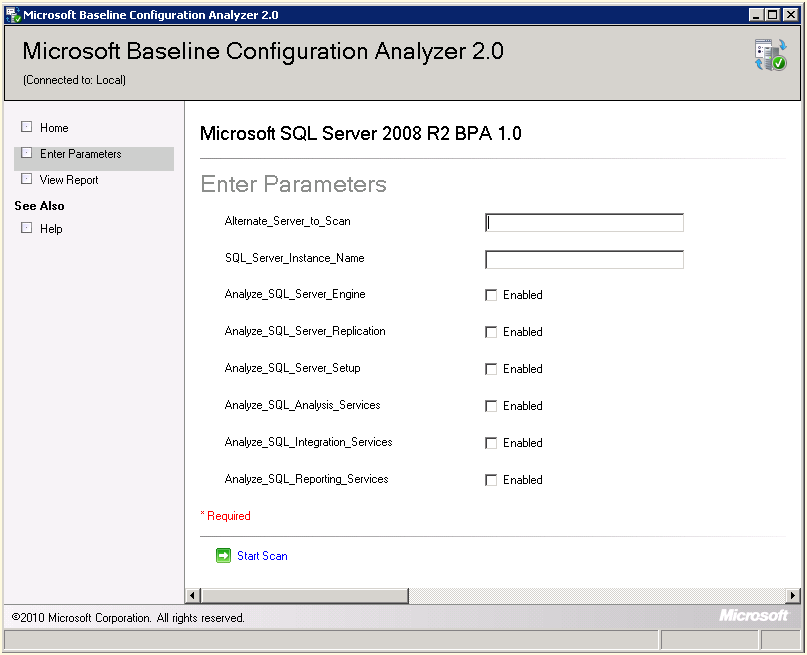 aspects of SQL Server that you would like to compare against the Best Practices for 2008 R2.
From this point you are ready to proceed with the scan and then view the results and recommendations presented after the analyzer compares against your particular SQL Server instance. Enjoy!


 SQL Swampland