Category Archives: Maintenance
What is a Blocked Process, and Why Do I Care?
This is a question I received from a new SQL Server DBA so I thought it would make a great blog topic. Blocking occurs in SQL Server when one process has one (or more) of the records locked and another process tries to acquire a lock on the record. This will subsequently cause the process to wait until the original process is done so that it can acquire the record. This can cause a domino effect if subsequent processes are waiting for the new process to be done with the records it is holding. Blocking is somewhat different from the fatal deadlock which SQL Server handles and stops automatically (and a block can become a deadlock but this a different case).
The blocked process essentially must wait and that can be a problem for your database! I have previously blogged about best practices for separating our your log files to another drive as well as system databases and tempdb. If you are not following these best practices, then they may play into your blocking situation as well as inadequate hardware for your SQL Server.
Ok, how do I see those blocked processes?
One way is some code I found at CodeProject: List blocking processes in SQL server – CodeProject®.
Or, two days ago I wrote a blog talking about the newest release of Adam Machanic’s Who is Active stored procedure.
Below I have listed a couple of links for more information on how to use this procedure.
Adam Machanic : Why Am I Blocked? (A Month of Activity Monitoring, Part 19 of 30)
Adam Machanic : Leader of the Block (A Month of Activity Monitoring, Part 23 of 30)
Thanks, Adam! Enjoy!
Best Practicing, the Results Part Dos
This week, we have been talking about running the Microsoft Baseline Configuration Analyzer 2.01 with the SQL Server Best Practice Analyzer for 2008 R2. Today I want to talk about one of the errors that occurred on one of the new boxes I just stood up in a new cluster. You may encounter a prerequisite error stating that the user is not a member of the Administrators group on the remote machine or PowerShell remoting is not enabled on the remote server. This is easily remedied.
- Add the user as a member of the Administrators group, or
- Run Enable-PSRemoting in PoweShell with elevated privileges, AND
- Run winrm set winrm/config/winrs `@`{MaxShellsPerUser=`”10″`} in PowerShell with elevated privileges.
Once I made these changes the analyzer was able to proceed. The analyzer will give you these directions, but I figured if you are reading this beforehand you can make the changes proactively. Enjoy!
Best Practicing, the Results Part I
Yesterday, I showed you how to install the Best Practices Analyzer and use it through the Baseline Configuration Analyzer. Even after your servers are setup for best practices, it is good to run the BPA from time to time to look for changes, especially if you have more than one DBA working on your servers. Here is a great example of its use: we purchased a new piece of software that needed to setup its database during the install. No problem, we do this quite often. After the install, two databases were created. Everything looked fine on the surface.
Not satisfied with everything looking fine, I ran the BPA and got the following results:

That’s right, the vendor tried to sneak in the Auto Shrink option. Now I can quickly remedy this situation and sleep easy tonight knowing that my SQL Server is yet again unblemished, for the most part.
Enjoy!
Best Practicing? Here’s How!
Are you trying to conform your systems to Microsoft standard best practices? Have you used Microsoft’s tools for automating this?

The first item you will need is the Microsoft Baseline Configuration Analyzer 2.0 (download). It will help you to maintain optimal system configuration by analyzing against the predefined set of best practices which we will download next. The Microsoft SQL Server 2008 R2 Best Practices Analyzer (download) is a component that runs within the MBCA. In addition, you will need PowerShell v2.0 installed on the server. This server can run against other SQL Servers so it does not need to be installed on your SQL Server.
Open the Microsoft Baseline Configuration Analyser and select SQL Server 2008 R2 BPA from the drop down as shown here. However, the first time you run the MBCA, you will have to type in the host and instance information. As you can see from my screenshot, I have already run this program at least once and now I can simply click once and scan it again. You can also choose Enter Parameters to view this screen, as shown below. Here it will let you choose which specific 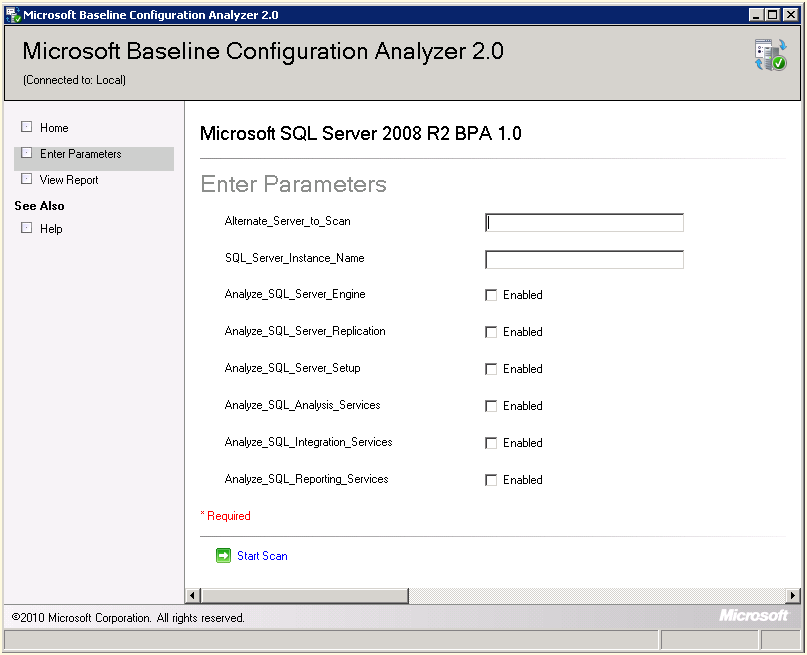 aspects of SQL Server that you would like to compare against the Best Practices for 2008 R2.
From this point you are ready to proceed with the scan and then view the results and recommendations presented after the analyzer compares against your particular SQL Server instance. Enjoy!
Optimizing TempDB Performance
Today I thought I would blog about TempDB performance. On one of my new servers, with 24 cores, I allocated eight TempDB files as that should be enough to distribute the load, reduce contention and improve performance. However, I forgot to restart the server after hours and it went on for a week and performance did not improve. It was at this point that I discovered that the files were not be proportionately filled. A simple Server restart resolved the issue and now it is running like a champ.
For more advice, check out Microsoft’s guidelines for Optimizing tempdb Performance.
Enjoy!
Backup and Recovery
On the drive in this morning, I was reflecting on what I needed to go over with my junior DBA today in his learning path (channeling Yoda). Backup and Recovery is so vitally important to what we do on a daily basis that I really need to drive that home to him. Therefore, I thought it would be a good topic to discuss and to blog about.
Then I remembered attending a Grant Fritchey (blog | twitter) webinar recently by Red Gate concerning this very same topic. If you missed the webinar, don’t worry as they put it up for all to see. There is really no need for me to reinvent the wheel here especially when Grant does it much better than I would. Thanks, Grant. Enjoy!
Database Snapshots, A Polaroid Into Your Soul
Database snapshots were introduced with SQL Server 2005 and are only available with Enterprise and Developer edition. Disclaimer is out-of-the-way, now onto the good stuff!
You can use snapshots to provide a snapshot into the soul of your data at a particular point in time. The snapshot is read-0nly, of course and is great for reporting or auditing purposes. Snapshots are much quicker than the previous method of restoring a backup to another database and setting it to read-only access. There is also some considerable space savings in a snapshot versus another copy of your MDF/LDFs.
Keep in mind the following limitations if you do decide to explore snapshots:
- Snapshots cannot be taken for system databases (not that big of a deal, in my opinion)
- Snapshots can only be created on an NTFS file system.
- As mentioned above, snapshots are read-only copies of the database, so changes to the data are obviously not p0ssible.
- Snapshots are I/O intensive and this should always be considered especially with limited resources.
- Snapshots are not supported for filestreams!
- Snapshots cannot be backed up or restored.
- Snapshots cannot be detached or attached.
- The source database cannot be detached, dropped or restored while there are snapshots present.
- If the source database is unavailable, then so will the snapshot be unavailable.
I feel like I am leaving off a couple of more limitations, but these are the ones I deal with mostly. I will blog more on this subject at a later time. Enjoy!
Microsoft RAP, Not Just Clever Lyrics
We scheduled a Microsoft RAP, or Risk and Health Assessment Program, with our Premier Support representative to occur this week. This is an excellent program where a Microsoft Premier Field Engineer comes on site and assesses the risk and health of your SQL servers. We installed some new hardware and began a migration process moving from 2005 to 2008R2, so we thought this would be an excellent opportunity to assess our new environment as well to look at our best practices. Additionally, one of my goals for the assessment has been to put some weight behind my best practice ideas as well as some weight in order to change some practices by our developers. This is also an excellent opportunity for some of junior staff members to talk one on one with the field engineer to discuss some issues we have been working through as well as some of our pain points.
I will blog next week about some of our more interesting findings. Enjoy!
Transaction Log Fills Up the Drive….Oh No!
Maybe your users cannot access your database, or maybe your preferred monitoring software is reporting limited or non-existent disk space on your log drive for a particular SQL Server. Maybe you get a call from a Subject Matter Expert telling you their application is wigging out, or maybe you get a call from a user or even better, from your helpdesk. We have all gotten that phone call or e-mail at one point or another. A transaction log has gone awry and wreaked havoc on your limited drive allocated to the log files. What next?
Do we know the database? We could look at the drive and find the culprit. However, we will need the logical name of the log file in order to shrink it, remember it isn’t always the same as the filename. Run the following in SQL Server Management Studio (SSMS) in order to get the log file name:
SELECT name FROM sys.database_files WHERE type_desc = ‘LOG’
At this point, we can try to shrink the database by issuing the following command:
DBCC SHRINKFILE(‘<DB log file name>’, 0)
If this does not shrink the file, then run the following command to see the log_reuse_wait_desc column (way over to the right):
SELECT * FROM sys.databases WHERE name = ‘<DB Name>’
The following values of the log_reuse_wait_desc are the most common reasons that the shrink operation has failed:
- CHECKPOINT: This means that there is no database checkpoint in the transaction logs. You should manually run the CHECKPOINT command or you could also perform a database backup.
- ACTIVE_TRANSACTION: This indicates that there is an open transaction. You can use DBCC OPENTRAN to find out what is going on (I will write another blog on this soon and link back here).
- LOG_BACKUP: This indicates that the log file has wrapped around to the beginning of the file and the free space is somewhere in the middle of the file. Run another log backup in order to move the free space to the beginning or end of the log file.
After completing one of the three afore-mentioned steps, we can now issue the SHRINKFILE command again….And all will be well with the universe. Enjoy!
You’ve Probably Had This Request Before…
So yesterday afternoon I received a management request to provide some statistics on our SQL Servers, probably to justify our positions for the next budget year. No problem, I thought, because I know how many total servers, how many clusters, how many physical boxes and how many are virtual. I also know which ones are production, acceptance, and development and I know how much RAM, how many processors and cores, how many drives and how big they all are. I also know how many licenses we own and which ones are Enterprise versus Standard, which ones are 2008R2 and which ones are 2005.
I also have a script (thanks to Pinal Dave) to tell me pretty much everything I need to know when I run it on each of my servers. However, that was not the information they requested. Wait for it, wait for it.
They wanted to know how many records or rows we maintained on how many tables. In all of my years working with SQL Server, Progress RDBMS, MS Access, and MySQL (in order of awesomeness), I do not think I have ever had anyone ask for that level of information. The quick stat that everyone wants to know is usually how many servers and how many terabytes. In our environment, they also want to know how many dot net applications are we supporting on those database servers.
Much to my dismay, my frantic google session showed many people who had a script that was essentially similar to Pinal’s script (although most were not nearly as fabulous). So I did what every DBA should do, I sent up a distress call to the #SQLHelp Twitter tag! Lo and behold who should come to my rescue, why SirSQL ((blog|twitter), who else would you expect? Although, I was not a damsel in distress so maybe that was a poor analogy, but hey it made me giggle, so why not?
Here is his solution, which is really quite elegant. I am thinking of automating it on one of my servers so that I can have this handy in case they ask for the information again. It is inevitable that they will ask for it again when you give it to them once, unless of course I spent hours writing the script myself. Thanks again, SirSQL!


 SQL Swampland