Blog Archives
Transaction Log Fills Up the Drive….Oh No!
Maybe your users cannot access your database, or maybe your preferred monitoring software is reporting limited or non-existent disk space on your log drive for a particular SQL Server. Maybe you get a call from a Subject Matter Expert telling you their application is wigging out, or maybe you get a call from a user or even better, from your helpdesk. We have all gotten that phone call or e-mail at one point or another. A transaction log has gone awry and wreaked havoc on your limited drive allocated to the log files. What next?
Do we know the database? We could look at the drive and find the culprit. However, we will need the logical name of the log file in order to shrink it, remember it isn’t always the same as the filename. Run the following in SQL Server Management Studio (SSMS) in order to get the log file name:
SELECT name FROM sys.database_files WHERE type_desc = ‘LOG’
At this point, we can try to shrink the database by issuing the following command:
DBCC SHRINKFILE(‘<DB log file name>’, 0)
If this does not shrink the file, then run the following command to see the log_reuse_wait_desc column (way over to the right):
SELECT * FROM sys.databases WHERE name = ‘<DB Name>’
The following values of the log_reuse_wait_desc are the most common reasons that the shrink operation has failed:
- CHECKPOINT: This means that there is no database checkpoint in the transaction logs. You should manually run the CHECKPOINT command or you could also perform a database backup.
- ACTIVE_TRANSACTION: This indicates that there is an open transaction. You can use DBCC OPENTRAN to find out what is going on (I will write another blog on this soon and link back here).
- LOG_BACKUP: This indicates that the log file has wrapped around to the beginning of the file and the free space is somewhere in the middle of the file. Run another log backup in order to move the free space to the beginning or end of the log file.
After completing one of the three afore-mentioned steps, we can now issue the SHRINKFILE command again….And all will be well with the universe. Enjoy!
New Year House Cleaning
As I was driving in to the office today, I could not help but think of my wife’s cleaning efforts at home yesterday. She decided the holiday was a good time to remove the clutter from our kitchen cabinets and drawers. That inspired me this morning to do the same and hopefully put a smile on my storage guys’ faces, at least until I add my new clusters in a couple of weeks and requests some more terabyte LUNs.
A fresh new year is a good time to go through your SQL servers and look for ancient backups that maybe got moved to a different location and escaped the cycle of retention, prehistoric MDFs and LDFs from failed migrations or temporary restorations to different servers. I know I had MDFs and LDFs from databases that were migrated to other servers that were left on the previous server as an insurance policy during the migration. After a month, I think it is safe to remove these and clean the clutter.
This can also be a good time to review your retention policies on your back up jobs and maintenance plans to make sure you are in compliance with your department’s requirements. Let’s all clean house and start the year off right! Enjoy!
Moving the Master Database Lesson Learned
With the new 2008R2 servers that were recently built, I am hoping to institute some standard best practices on the boxes moving forward. The first one was to move the TempDB to its own drive on a separate LUN and since I have moved a TempDB before, no problems here. The second best practice was to make a separate drive on a separate LUN for the databases and log files, check and check. The third practice was to move the system databases, which sounded simple in theory but I have never done it before, uncheck–it did not work.
I followed Microsoft’s directions but it did not cover my contingency. The following excerpt is taken from Microsoft’s MSDN site for SQL Server 2008 R2 in order to Move the Master Database, with changes for my separate drives.
To move the master database, follow these steps.
- From the Start menu, point to All Programs, point to Microsoft SQL Server, point to Configuration Tools, and then click SQL Server Configuration Manager.
- In the SQL Server Services node, right-click the instance of SQL Server (for example, SQL Server (MSSQLSERVER)) and choose Properties.
- In the SQL Server (instance_name) Properties dialog box, click the Advanced tab.
- Edit the Startup Parameters values to point to the planned location for the master database data and log files, and click OK. Moving the error log file is optional.The parameter value for the data file must follow the -d parameter and the value for the log file must follow the -l parameter. The following example shows the parameter values for the default location of the master data and log files.
-J:\SQL\master.mdf;-eC:\Program Files\Microsoft SQL Server\MSSQL10_50.MSSQLSERVER\MSSQL\
LOG\ERRORLOG;-lJ:\SQL\mastlog.ldf- Stop the instance of SQL Server by right-clicking the instance name and choosing Stop.
- Move the master.mdf and mastlog.ldf files to the new location.
- Restart the instance of SQL Server. Here is where I had my issue, it would not restart. Through my troubleshooting I realized that the new folder did not have the same permissions as the original folder. I added the SQLServerMSSQLUser$<machine name>$<instance name> user that was created by the SQL installer. Problem solved.
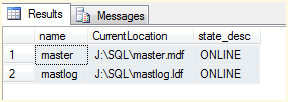
- Verify the file change for the master database by running the following query.
SELECT name, physical_name AS CurrentLocation, state_desc
FROM sys.master_files
WHERE database_id = DB_ID(‘master’);
GOVerify the file change

Enjoy! I hope this helps!


 SQL Swampland